
Shape tones with Curves
A curve maps every tone in the photo to a new tone. Use it for contrast with a shape the sliders can’t give you, or to color the shadows and highlights separately.
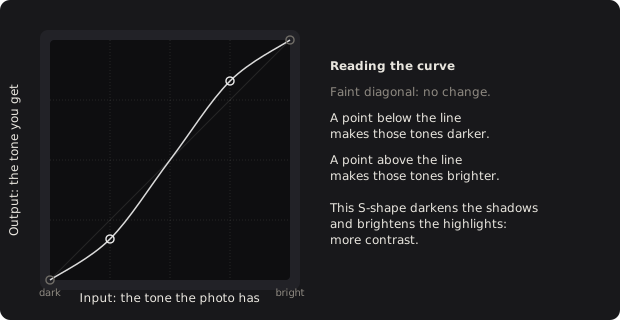
Draw a curve
Section titled “Draw a curve”- Open Curves in the right column. The graph starts as a straight diagonal line: no change.
- Click on the line to add a point, and drag it up to brighten those tones or down to darken them.
- Add more points to control other tones. Drag any point to refine it.
- Right-click a point to remove it.
The two end points stay at the left and right edges. You can move them up and down, for example to lift the blacks so the darkest tones turn gray. The histogram of the photo sits behind the graph to show where the tones are.

Curve one color
Section titled “Curve one color”The buttons above the graph pick which curve you are editing.
- RGB changes all three channels together, which changes tone and contrast.
- R, G and B change one channel. Lifting the shadows in B, for example, tints the shadows blue. These add to the RGB curve.
Double-click a channel’s button to reset that curve.
Start from a preset
Section titled “Start from a preset”The menu on the Curves header lists ready-made curves: S-Curve Light, S-Curve Medium, S-Curve Strong, Faded Matte, Crushed Blacks and Cross Process. Pick one to replace the section’s curves in one undo step; you can then adjust it. The same menu saves your own, as described in effects and presets.
Technical details: what the curve's horizontal axis means
The photo is stored in linear light, where the middle of the graph would be much darker than it looks. A curve on that scale would be hard to use, so the graph’s input axis follows how bright the tone looks on screen (the sRGB curve), the same scale as the histogram. DarkRay converts the curve to work on linear values, so the working color space doesn’t change.
The curve is a smooth Akima spline through your points. The RGB curve is applied first, then the red, green and blue curves. Values brighter than white continue in a straight line instead of being clipped.