
Crop and straighten
Crop and rotation are edits like any other. The original file never changes, and you can reopen the crop later to change it.
Crop a photo
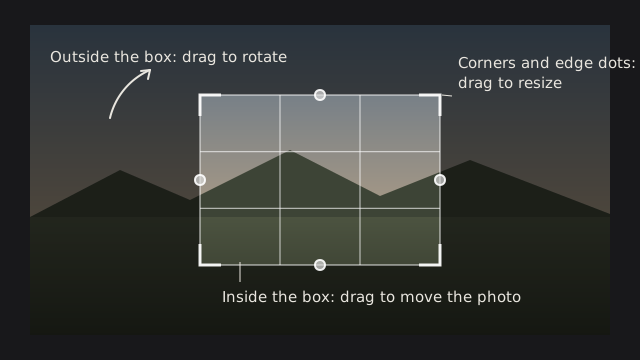
Section titled “Crop a photo”- In Edit, open Framing in the left column and click Edit Crop. The whole photo shows, with a thirds grid in the box and everything outside it dimmed. The button now reads Done.
- Drag a corner or an edge dot to resize the box. Drag inside the box to move the photo under it.
- Press Enter or click Done to apply the crop. Press Esc to cancel; the crop you had when you opened the tool comes back.

The whole session is one undo step.
Choose a shape
Section titled “Choose a shape”While Edit Crop is on, the list under Rotate sets the box’s aspect ratio:
| Choice | Does |
|---|---|
| Original | Frees the box (no lock) |
| Custom | Set by typing your own ratio |
| 1:1, 4:3, 3:2, 16:9, 5:4, 7:5, 2:1, 3:1 | Locks the box to that ratio |
| 65:24 | Locks to the XPAN panoramic frame |
| 2.35:1 | Locks to the cinema frame |
Picking a ratio rebuilds the box as the largest box of that shape, centered on the current one. Type your own whole numbers in the two fields beside the list and the choice becomes Custom. The padlock turns the lock on and off; with Original chosen, it locks the box to the photo’s own shape.
By default, X turns the box between landscape and portrait. With a lock on, the ratio swaps (3:2 becomes 2:3).
Straighten a tilted horizon
Section titled “Straighten a tilted horizon”Drag Rotate, which runs from -45° to +45° and shows tenths of a degree. Positive values turn the photo clockwise. It works without opening the crop tool.
In the crop tool you can also drag anywhere outside the box. The photo turns as you circle the box, and the angle shows in the middle of it.
The box shrinks as needed so no empty corners show, and grows back as the angle returns toward 0°. With no crop drawn, a straightened photo is trimmed to the largest rectangle that fits.
Remove a crop
Section titled “Remove a crop”Click Reset while Edit Crop is on, or the Reset button in the section header. Both clear the crop, the rotation and the ratio lock. The power button in the header switches Framing off without losing what you set.
Technical details: where the crop sits in the pipeline
The crop and the rotation are applied after every layer is composited, so layers, masks and gradients are drawn on the full frame and follow the crop. The vignette comes after the crop, so it frames the cropped photo.
The tool keeps only the box you drew. The box shown on a tilted photo is that box fitted inside the rotated picture, which is why it grows back when you reduce the angle. Export and the viewer use the same calculation, so the crop you see is the crop you get.
For a quarter turn, use Rotate 90°.