
Compare two photos at full size
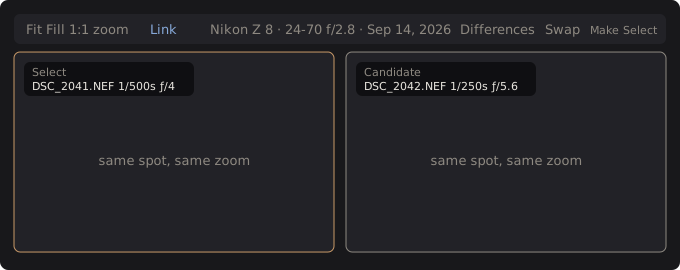
Compare shows two photos next to each other at full resolution. When you zoom or pan one, the other follows, so you can check the same spot in both frames. It is made for choosing between near duplicates, such as a burst.
Start a comparison
Section titled “Start a comparison”Select two photos in the grid and press C (by default), or click the Compare button. You can also choose View › Compare or right-click and choose Compare.
- With two or more selected, Compare opens on the first two.
- With one selected, it opens on that photo and the next one shown. If the photo is last, it uses the one before.
- With none selected, Compare tells you to select one or two.
The left photo is the Select, the one you are keeping so far. The right is the Candidate, the one you are testing against it.
Judge the pair
Section titled “Judge the pair”- Zoom in with Ctrl+wheel or the wheel over a pane, or use the zoom controls in the strip (Fit, Fill, 1:1, the slider). Drag to pan.
- Check the same spot in both. With Link on (the default), the other pane zooms by the same factor and shows the same relative spot. Two frames from one camera show the same pixel scale.
- Press Right or Left to bring the next or previous photo in as the Candidate. It skips the Select.
- Rate or label with the usual keys. They act on the Candidate.
Turn Link off to move each pane on its own. Turning it back on snaps the other pane to the one you last used. Linking is exact only for frames of the same size; for a portrait beside a landscape, or a cropped photo, it follows the same relative spot instead.
Change who is who
Section titled “Change who is who”| To | Press | Or click |
|---|---|---|
| Swap the Select and the Candidate | X | Swap |
| Make the Candidate the new Select | Shift+X | Make Select |
Make Select moves on from the new Select: Left and Right then walk through the rest. When you select three or more photos before opening Compare, the walk goes through just those; otherwise it goes through every photo the grid shows. Clicking a photo in the filmstrip makes it the Candidate.
Press Esc or the Grid button to leave. Both photos stay selected in the grid, with the Select first.
What the labels show
Section titled “What the labels show”Each pane has a small label at its top left: its role, the file name (with the copy name for a virtual copy), then camera, lens, focal length, aperture, shutter speed, ISO, date, size, Edited or Original, and the rating.
Press I, or click the button in the strip, to cycle what the labels show:
| Mode | Shows |
|---|---|
| Differences (the default) | Only what differs between the two photos. What they share is written once in the middle of the strip. |
| Everything | All fields on both labels. |
| No overlay | No labels. |
The mode is remembered.
Good to know
Section titled “Good to know”- Compare shows each photo as Export would render it, with its edits. It is not a place to edit. If you change a photo and compare it again, it is rendered again.
- Each pane shows the stored preview first, scaled to the real size, and the label ends with “preview”. The full-size render replaces it a moment later, keeping your zoom and spot. Don’t judge sharpness while “preview” shows. The progress shows in the status bar as “Rendering for Compare”, and you can cancel it.
Technical details: memory and rendering
Compare renders the full frame of each photo, one at a time, through the same path as an export. A 46-megapixel photo takes about 140 MB in its pane. The frames are freed when you leave Compare or step a pane to another photo. A photo that needs its RAW preparation first (denoise) prepares it before rendering.